How to separate audio from a video online
How to separate audio from a video online
Updated on
If you have a video clip with the wrong audio, like background music you can't use, wind noise, a voiceover that needs replacing, or a soundtrack that will get flagged on YouTube, you don't need to download software to fix it. In elevate.io, you can separate audio from video, mute a clip entirely, or remove the original audio track and replace it with something new, all free in your browser with no installation required.
For a quick product reference alongside this guide, see the how to separate audio from a video page in the learn section.
Open elevate.io in your browser
What does separating audio from video actually mean?
The term covers a few different things depending on what you're trying to do:
Separating (unlinking) detaches the audio track from the video clip on the timeline so you can move, trim, or delete it independently. Use this when you want to shift the audio timing, keep the audio while swapping out the video, or delete the audio altogether.
Muting removes the audio on export while keeping the track visible in the editor. Use this when you want a silent clip or plan to add a new soundtrack on top.
Extracting audio as a standalone file is not a direct export option in elevate.io, but the closest equivalent is to unlink the audio, delete the video track, and export the result, or simply use the unlinked audio track within your project alongside other clips.
How to separate audio from a video in elevate.io
The separation step in elevate.io takes one right-click. Once the audio is unlinked from the video clip, both tracks sit independently on the timeline and you can edit them freely.
Open elevate.io in your browser and sign in, or create a free account
Click
+ Create projectin the top right of your workspaceUpload your video clip to the media panel
Drag the clip onto the timeline - the video and audio will appear as linked tracks
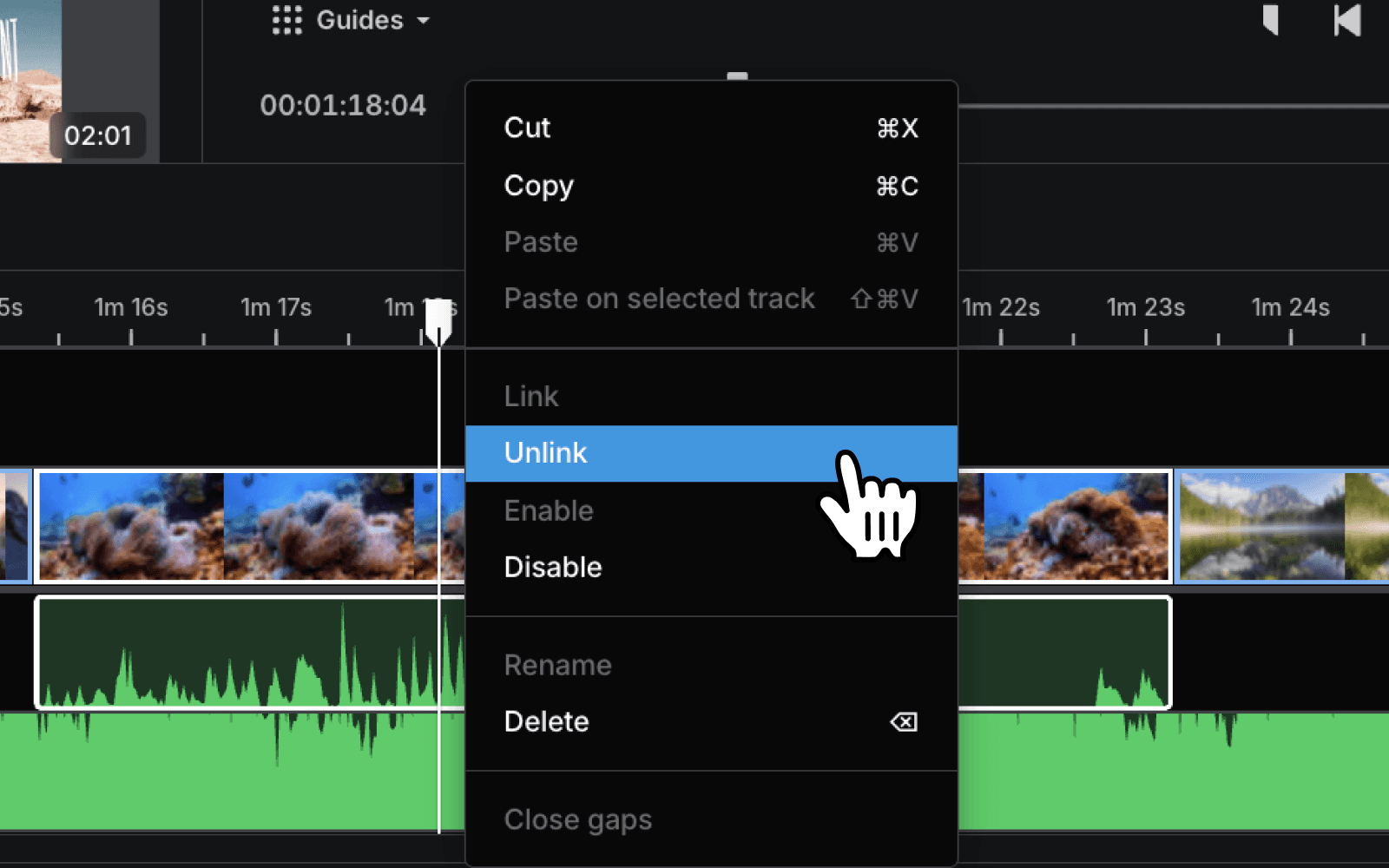
Right-click the clip on the timeline to open the context menu
Select Unlink - the audio track and video clip are now independent
Click the audio track to select it, then move, trim, or delete it as needed
When you're done, export your video from the top right of the editor
Start editing in your browser - no download needed
How to remove sound from a video entirely
If you don't need to edit the audio separately and just want silence, there are two fast ways to do it in elevate.io.
The quickest method is to unlink the audio following the steps above, click the audio track to select it, and delete it. When you export, the video will have no audio.
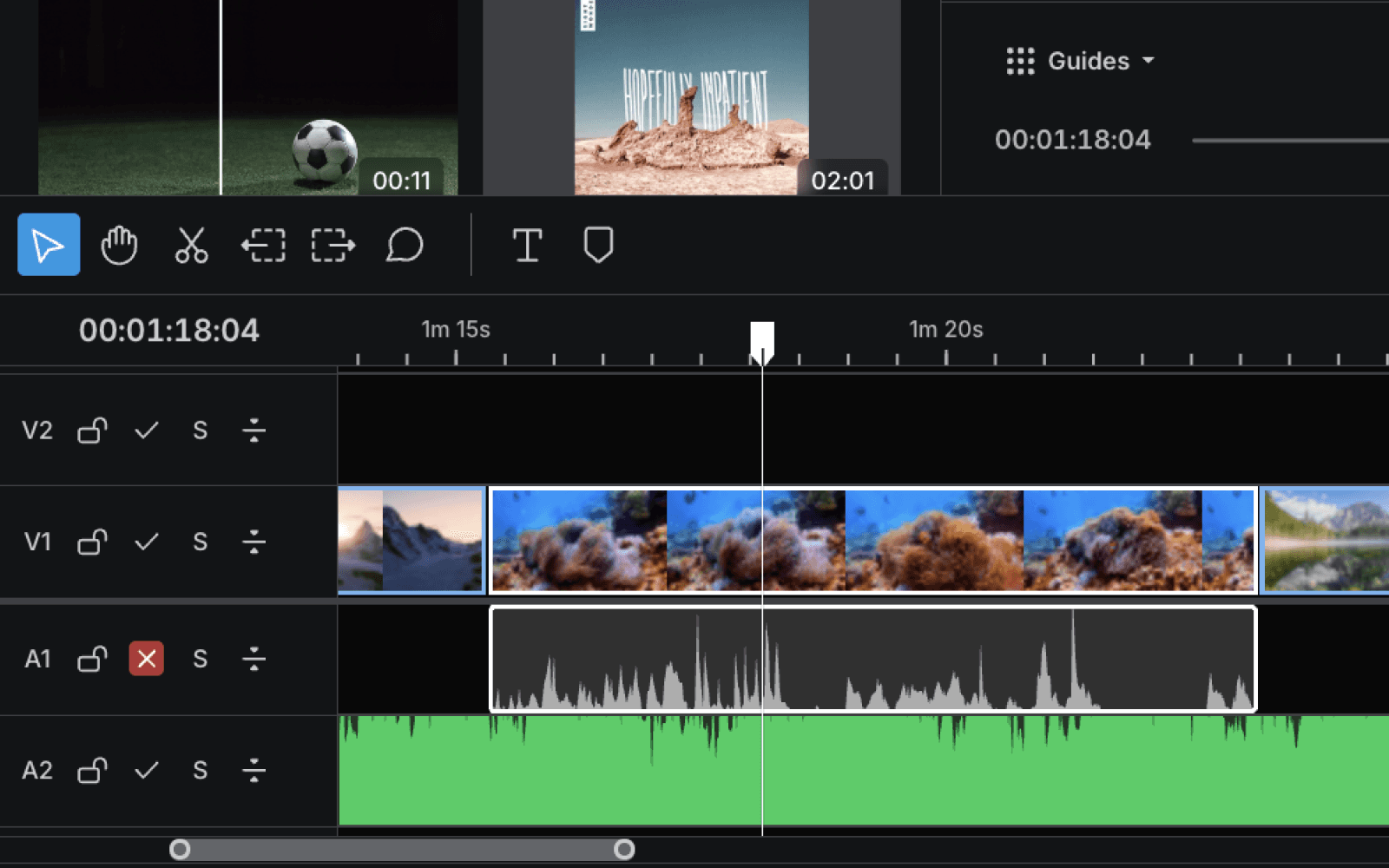
If you want to keep the audio track visible on the timeline but exclude it from the export, you can disable the track instead. Click the checkmark icon to the left of the audio track on the timeline. The checkmark turns to an x with a red background, which means the track is disabled and will not appear in the exported file. You can re-enable it at any time before exporting.
Both methods take under a minute and work in any browser with no software to install.
When would you separate audio from a video?
The most common reasons people need to separate or remove sound from a video:
Replacing background music on a social media clip before publishing, particularly where the original music is copyrighted and would be flagged by YouTube or TikTok
Removing unusable audio such as wind noise, an accidental recording, or on-set sound that was never meant to be in the final cut
Editing a voiceover independently from the footage, unlinking lets you trim or shift the timing of the audio track without affecting the video
Fixing lip-sync issues by nudging the audio track forward or back on the timeline after unlinking
Keeping room-tone audio while swapping out the video portion of a clip
Adding music, narration, or other features to footage that was shot with poor audio, unlink and delete the original, then add music to a video in its place
Frequently asked questions
How can I separate audio from video files easily?
The easiest way to separate audio from video without downloading software is to use a browser-based editor. In elevate.io, right-click the clip on the timeline and select Unlink; the audio and video tracks become independent immediately. You can then delete, move, or edit either track without affecting the other.
Where can I find online tools to separate audio from video files?
elevate.io is a free browser-based online video editor that includes an Unlink function for separating audio and video tracks on the timeline. It works on any device, including Chromebooks, requires no installation, and the separation feature is available on the free plan.
How do I separate audio and video tracks using popular video editors?
In most timeline-based editors, the process is similar: right-click the clip and look for an Unlink, Detach, or Separate Audio option. In elevate.io, the option is called Unlink and appears in the right-click context menu on the timeline. Once unlinked, both tracks can be edited independently.
Where can I download software that separates audio from video in high quality?
If you need a browser-based solution with no download, elevate.io handles separation in a few clicks and exports in up to 4K. If you specifically need a desktop application, most professional editors include a detach audio function, though both require more setup than a browser-based tool.
Separate audio from your video in seconds
Separating audio in elevate.io takes a few seconds. Open it in your browser, upload your clip, right-click on the timeline, and select Unlink. There’s no download, no account upgrade required to get started, and it works on any device.
If you have a video clip with the wrong audio, like background music you can't use, wind noise, a voiceover that needs replacing, or a soundtrack that will get flagged on YouTube, you don't need to download software to fix it. In elevate.io, you can separate audio from video, mute a clip entirely, or remove the original audio track and replace it with something new, all free in your browser with no installation required.
For a quick product reference alongside this guide, see the how to separate audio from a video page in the learn section.
Open elevate.io in your browser
What does separating audio from video actually mean?
The term covers a few different things depending on what you're trying to do:
Separating (unlinking) detaches the audio track from the video clip on the timeline so you can move, trim, or delete it independently. Use this when you want to shift the audio timing, keep the audio while swapping out the video, or delete the audio altogether.
Muting removes the audio on export while keeping the track visible in the editor. Use this when you want a silent clip or plan to add a new soundtrack on top.
Extracting audio as a standalone file is not a direct export option in elevate.io, but the closest equivalent is to unlink the audio, delete the video track, and export the result, or simply use the unlinked audio track within your project alongside other clips.
How to separate audio from a video in elevate.io
The separation step in elevate.io takes one right-click. Once the audio is unlinked from the video clip, both tracks sit independently on the timeline and you can edit them freely.
Open elevate.io in your browser and sign in, or create a free account
Click
+ Create projectin the top right of your workspaceUpload your video clip to the media panel
Drag the clip onto the timeline - the video and audio will appear as linked tracks
Right-click the clip on the timeline to open the context menu
Select Unlink - the audio track and video clip are now independent
Click the audio track to select it, then move, trim, or delete it as needed
When you're done, export your video from the top right of the editor
Start editing in your browser - no download needed
How to remove sound from a video entirely
If you don't need to edit the audio separately and just want silence, there are two fast ways to do it in elevate.io.
The quickest method is to unlink the audio following the steps above, click the audio track to select it, and delete it. When you export, the video will have no audio.
If you want to keep the audio track visible on the timeline but exclude it from the export, you can disable the track instead. Click the checkmark icon to the left of the audio track on the timeline. The checkmark turns to an x with a red background, which means the track is disabled and will not appear in the exported file. You can re-enable it at any time before exporting.
Both methods take under a minute and work in any browser with no software to install.
When would you separate audio from a video?
The most common reasons people need to separate or remove sound from a video:
Replacing background music on a social media clip before publishing, particularly where the original music is copyrighted and would be flagged by YouTube or TikTok
Removing unusable audio such as wind noise, an accidental recording, or on-set sound that was never meant to be in the final cut
Editing a voiceover independently from the footage, unlinking lets you trim or shift the timing of the audio track without affecting the video
Fixing lip-sync issues by nudging the audio track forward or back on the timeline after unlinking
Keeping room-tone audio while swapping out the video portion of a clip
Adding music, narration, or other features to footage that was shot with poor audio, unlink and delete the original, then add music to a video in its place
Frequently asked questions
How can I separate audio from video files easily?
The easiest way to separate audio from video without downloading software is to use a browser-based editor. In elevate.io, right-click the clip on the timeline and select Unlink; the audio and video tracks become independent immediately. You can then delete, move, or edit either track without affecting the other.
Where can I find online tools to separate audio from video files?
elevate.io is a free browser-based online video editor that includes an Unlink function for separating audio and video tracks on the timeline. It works on any device, including Chromebooks, requires no installation, and the separation feature is available on the free plan.
How do I separate audio and video tracks using popular video editors?
In most timeline-based editors, the process is similar: right-click the clip and look for an Unlink, Detach, or Separate Audio option. In elevate.io, the option is called Unlink and appears in the right-click context menu on the timeline. Once unlinked, both tracks can be edited independently.
Where can I download software that separates audio from video in high quality?
If you need a browser-based solution with no download, elevate.io handles separation in a few clicks and exports in up to 4K. If you specifically need a desktop application, most professional editors include a detach audio function, though both require more setup than a browser-based tool.
Separate audio from your video in seconds
Separating audio in elevate.io takes a few seconds. Open it in your browser, upload your clip, right-click on the timeline, and select Unlink. There’s no download, no account upgrade required to get started, and it works on any device.