How to remove background noise from a video online
How to remove background noise from a video online
Updated on
There’s nothing worse than getting a good shot, only for the audio to be ruined by the traffic outside the window, an AC hum in the background, or a door closing mid-sentence. Any one of these issues is enough to make a video feel unprofessional, even when everything else is right.
The old fix was manual equalisation in a separate audio tool, which takes time and rarely sounds clean. elevate.io's AI Voice isolation removes background noise in one click, directly in your browser, without touching a separate piece of software.
Fix your audio now - open elevate.io in your browser
What is AI Voice isolation?
AI Voice isolation separates the voice track from everything behind it (traffic, air conditioning, wind, background chatter, keyboard clicks, room echo) and removes the noise, leaving only the voice. You don’t have to identify the noise type, adjust any settings, or have any audio editing experience. Switch it on and it runs automatically in the cloud.
The feature runs on credits called tokens. Every account starts with 100 free introductory tokens when you sign up, and they don’t expire, so there is no pressure to use them immediately. Users on paid plans receive monthly tokens that reset with each billing cycle, with the option to purchase additional tokens when needed. For more on how tokens work, visit elevate.io/learn/tokens.

How to remove background noise from a video in elevate.io
The whole process takes under a minute. The noise removal runs in the cloud while you carry on editing and nothing stops while it processes.
Open elevate.io in your browser and sign in, or create a free account
Click the blue
+ Create projectbutton in the top right of your workspaceUpload your video clip or audio clip to the media panel
Drag the clip onto the timeline
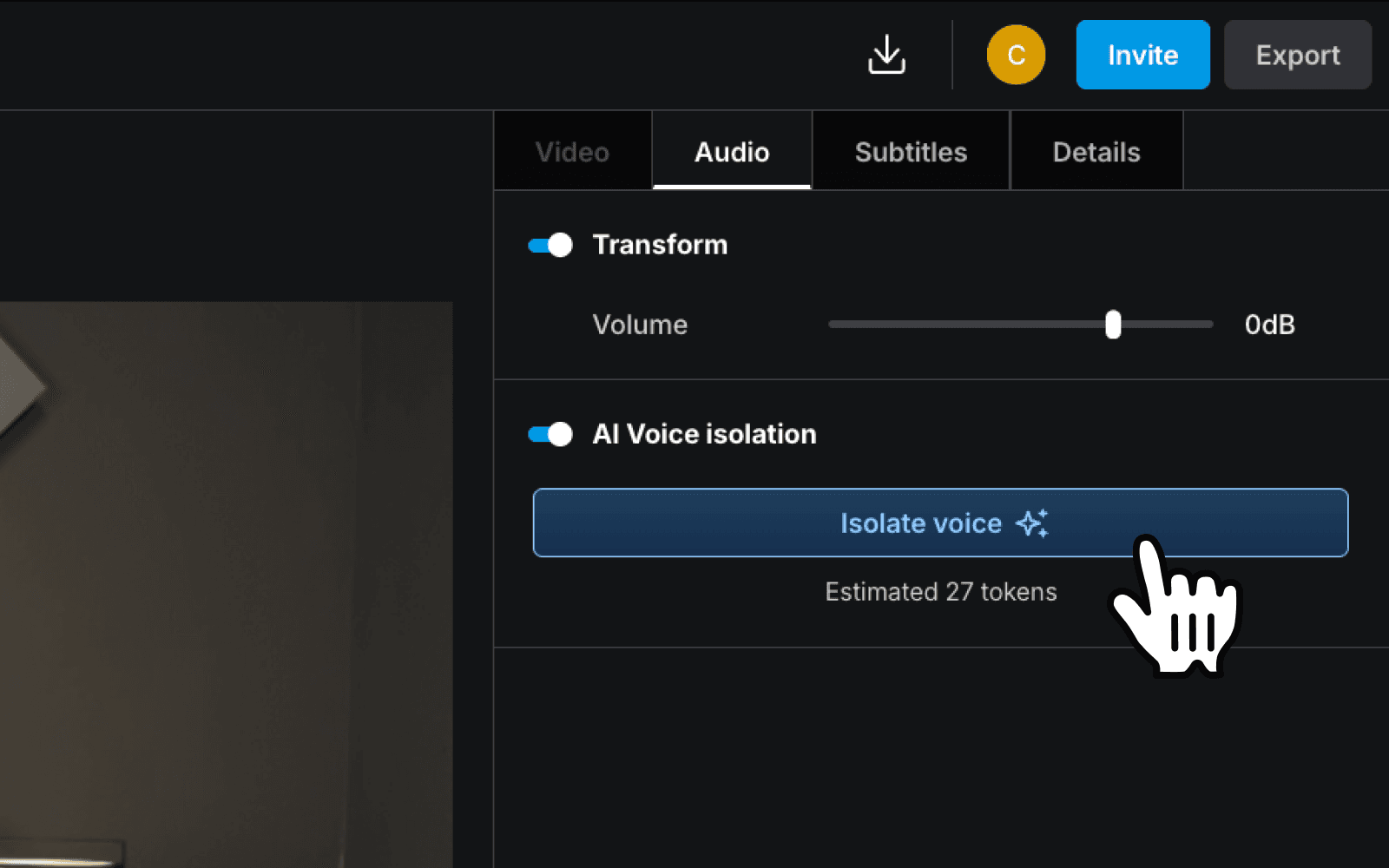
Click the clip on the timeline to select it, then open the Audio tab in the top right of the editor
Find AI Voice isolation and switch the toggle on
Click the
Isolate voicebuttonWhile it processes, carry on editing. You can continue working or even close the tab and come back later. Nothing pauses when AI tools run in elevate.io
Once it has processed, play the clip back and you will hear clean, clear audio with the background noise removed
Export your video from the top right of the editor when you are ready
Start removing background noise in your browser, no download needed
When would you use AI Voice isolation?
The most common scenarios where background noise might be an issue:
Location shoots with street noise, such as interviews or product videos filmed near traffic, building sites, or busy areas where ambient noise is unavoidable. AI Voice isolation strips the background and keeps the voice without a reshoot.
Indoor recordings with AC or HVAC hum like offices, meeting rooms, and home setups almost always have a low-frequency hum from air conditioning or ventilation. It is subtle enough to miss during recording but becomes obvious during playback.
Wind noise on outdoor footage. Wind picked up by a built-in microphone is one of the hardest things to fix manually. AI Voice isolation handles it automatically.
Zoom or Teams recordings with background noise. Remote interviews and webinars often capture keyboard clicks, echo, or ambient room noise that makes the recording harder to follow. Running AI Voice isolation before editing or sharing cleans up the audio without any manual work on your part.
Social media content shot on a phone. Phone microphones pick up everything in the room. For content going to Instagram, TikTok, or YouTube where audio quality directly affects watch time, removing background noise before publishing is worth the one click it takes.
Voiceover recorded in a non-studio environment. If you have recorded narration in a room with reverb, echo, or ambient noise, AI Voice isolation cleans it up before the voiceover goes back onto the timeline. If you prefer to generate voiceover entirely without recording, AI text-to-speech produces clean narration from a typed script.
Remove background noise in under a minute
AI Voice isolation in elevate.io takes one click. Switch the toggle on in the Audio tab, hit Isolate voice, and the noise is gone by the time you have finished the next cut. No download, no separate audio software, no manual equalisation. Start free with 100 introductory tokens and clean up your first clip today.
Frequently asked questions
What is the best free tool to remove background noise from a video?
elevate.io's AI Voice isolation is one of the strongest free options available because it is built directly into a full video editor rather than sitting as a standalone audio tool. You upload your clip, select it on the timeline, switch on AI Voice isolation in the Audio tab, and click Isolate voice. The noise is removed in the cloud and the result lands back in the same project you are editing in. Free accounts start with 100 introductory tokens, which do not expire.
Can I remove background noise without downloading software?
Yes. elevate.io runs entirely in the browser, so there is no download or installation required. AI Voice isolation processes in the cloud, which means your machine does not need to be powerful and you do not need to stay on the page while it runs. It works on any device (Mac, PC, Chromebook) across Chrome, Edge, Safari, Firefox, and Opera.
Does removing background noise affect the voice quality?
AI Voice isolation is designed to remove noise without affecting the voice track. The result should sound clean and natural rather than processed or hollow. For recordings where the voice and noise are very close in frequency (a speaker standing next to a fan, for example) the output may vary, but for most common noise types (traffic, AC hum, wind, keyboard, echo) the voice comes through clearly.
How many tokens does AI Voice isolation use?
Token usage depends on the length of the clip. To check the exact cost before committing, select the clip on the timeline, open the Audio tab, and switch on AI Voice isolation. The estimated token cost will appear before you click Isolate voice. Your tokens are not spent until you click the button. For more on how tokens work, visit elevate.io/learn/tokens.
Can I use AI Voice isolation on an audio-only file?
Yes. As well as video clips, you can upload an audio file directly to the media panel, drag it onto the timeline, and apply AI Voice isolation the same way. The cleaned audio can then be used as a standalone track or combined with other clips in the same project.
There’s nothing worse than getting a good shot, only for the audio to be ruined by the traffic outside the window, an AC hum in the background, or a door closing mid-sentence. Any one of these issues is enough to make a video feel unprofessional, even when everything else is right.
The old fix was manual equalisation in a separate audio tool, which takes time and rarely sounds clean. elevate.io's AI Voice isolation removes background noise in one click, directly in your browser, without touching a separate piece of software.
Fix your audio now - open elevate.io in your browser
What is AI Voice isolation?
AI Voice isolation separates the voice track from everything behind it (traffic, air conditioning, wind, background chatter, keyboard clicks, room echo) and removes the noise, leaving only the voice. You don’t have to identify the noise type, adjust any settings, or have any audio editing experience. Switch it on and it runs automatically in the cloud.
The feature runs on credits called tokens. Every account starts with 100 free introductory tokens when you sign up, and they don’t expire, so there is no pressure to use them immediately. Users on paid plans receive monthly tokens that reset with each billing cycle, with the option to purchase additional tokens when needed. For more on how tokens work, visit elevate.io/learn/tokens.
How to remove background noise from a video in elevate.io
The whole process takes under a minute. The noise removal runs in the cloud while you carry on editing and nothing stops while it processes.
Open elevate.io in your browser and sign in, or create a free account
Click the blue
+ Create projectbutton in the top right of your workspaceUpload your video clip or audio clip to the media panel
Drag the clip onto the timeline
Click the clip on the timeline to select it, then open the Audio tab in the top right of the editor
Find AI Voice isolation and switch the toggle on
Click the
Isolate voicebuttonWhile it processes, carry on editing. You can continue working or even close the tab and come back later. Nothing pauses when AI tools run in elevate.io
Once it has processed, play the clip back and you will hear clean, clear audio with the background noise removed
Export your video from the top right of the editor when you are ready
Start removing background noise in your browser, no download needed
When would you use AI Voice isolation?
The most common scenarios where background noise might be an issue:
Location shoots with street noise, such as interviews or product videos filmed near traffic, building sites, or busy areas where ambient noise is unavoidable. AI Voice isolation strips the background and keeps the voice without a reshoot.
Indoor recordings with AC or HVAC hum like offices, meeting rooms, and home setups almost always have a low-frequency hum from air conditioning or ventilation. It is subtle enough to miss during recording but becomes obvious during playback.
Wind noise on outdoor footage. Wind picked up by a built-in microphone is one of the hardest things to fix manually. AI Voice isolation handles it automatically.
Zoom or Teams recordings with background noise. Remote interviews and webinars often capture keyboard clicks, echo, or ambient room noise that makes the recording harder to follow. Running AI Voice isolation before editing or sharing cleans up the audio without any manual work on your part.
Social media content shot on a phone. Phone microphones pick up everything in the room. For content going to Instagram, TikTok, or YouTube where audio quality directly affects watch time, removing background noise before publishing is worth the one click it takes.
Voiceover recorded in a non-studio environment. If you have recorded narration in a room with reverb, echo, or ambient noise, AI Voice isolation cleans it up before the voiceover goes back onto the timeline. If you prefer to generate voiceover entirely without recording, AI text-to-speech produces clean narration from a typed script.
Remove background noise in under a minute
AI Voice isolation in elevate.io takes one click. Switch the toggle on in the Audio tab, hit Isolate voice, and the noise is gone by the time you have finished the next cut. No download, no separate audio software, no manual equalisation. Start free with 100 introductory tokens and clean up your first clip today.
Frequently asked questions
What is the best free tool to remove background noise from a video?
elevate.io's AI Voice isolation is one of the strongest free options available because it is built directly into a full video editor rather than sitting as a standalone audio tool. You upload your clip, select it on the timeline, switch on AI Voice isolation in the Audio tab, and click Isolate voice. The noise is removed in the cloud and the result lands back in the same project you are editing in. Free accounts start with 100 introductory tokens, which do not expire.
Can I remove background noise without downloading software?
Yes. elevate.io runs entirely in the browser, so there is no download or installation required. AI Voice isolation processes in the cloud, which means your machine does not need to be powerful and you do not need to stay on the page while it runs. It works on any device (Mac, PC, Chromebook) across Chrome, Edge, Safari, Firefox, and Opera.
Does removing background noise affect the voice quality?
AI Voice isolation is designed to remove noise without affecting the voice track. The result should sound clean and natural rather than processed or hollow. For recordings where the voice and noise are very close in frequency (a speaker standing next to a fan, for example) the output may vary, but for most common noise types (traffic, AC hum, wind, keyboard, echo) the voice comes through clearly.
How many tokens does AI Voice isolation use?
Token usage depends on the length of the clip. To check the exact cost before committing, select the clip on the timeline, open the Audio tab, and switch on AI Voice isolation. The estimated token cost will appear before you click Isolate voice. Your tokens are not spent until you click the button. For more on how tokens work, visit elevate.io/learn/tokens.
Can I use AI Voice isolation on an audio-only file?
Yes. As well as video clips, you can upload an audio file directly to the media panel, drag it onto the timeline, and apply AI Voice isolation the same way. The cleaned audio can then be used as a standalone track or combined with other clips in the same project.