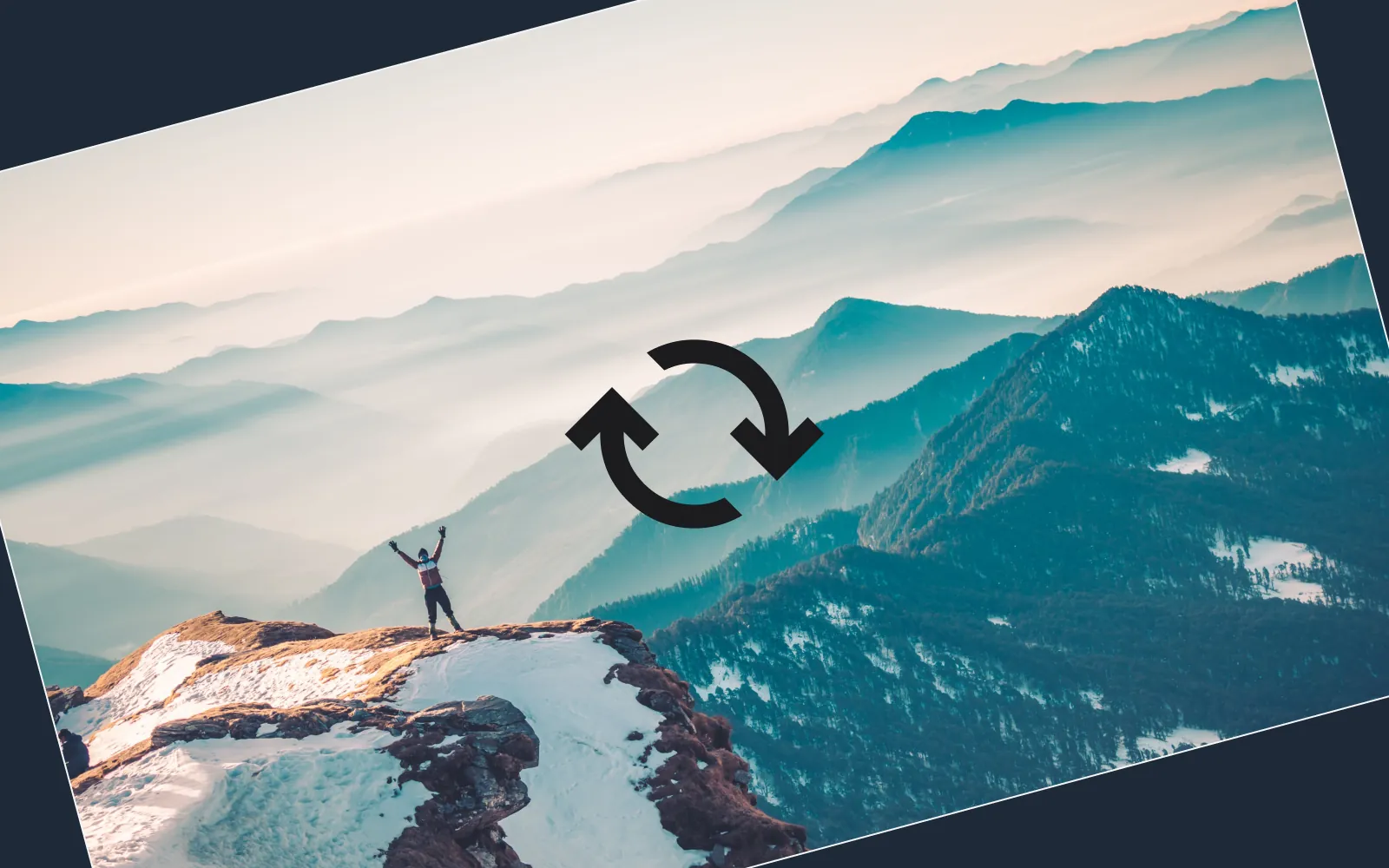
If you've exported a video and found it's sideways, upside down, or mirrored, you don't need to reshoot it or download software to fix it. You can flip or rotate a video directly in your browser in under a minute. This guide shows you how to do both using elevate.io.
Fix your video now - open elevate.io in your browser
What is the difference between flipping and rotating a video?
These terms are often used interchangeably, but they do different things. Rotating changes the angle of the video (type any value in degrees you want, no limitations here!) and is what you need when a clip was shot sideways, upside down, straightening it, realigning it or fixing a slightly tilted clip. Flipping mirrors the video either horizontally (left-right) or vertically (top-bottom), and is what you need when text appears backwards, or an image looks reversed.
How to rotate a video in elevate.io
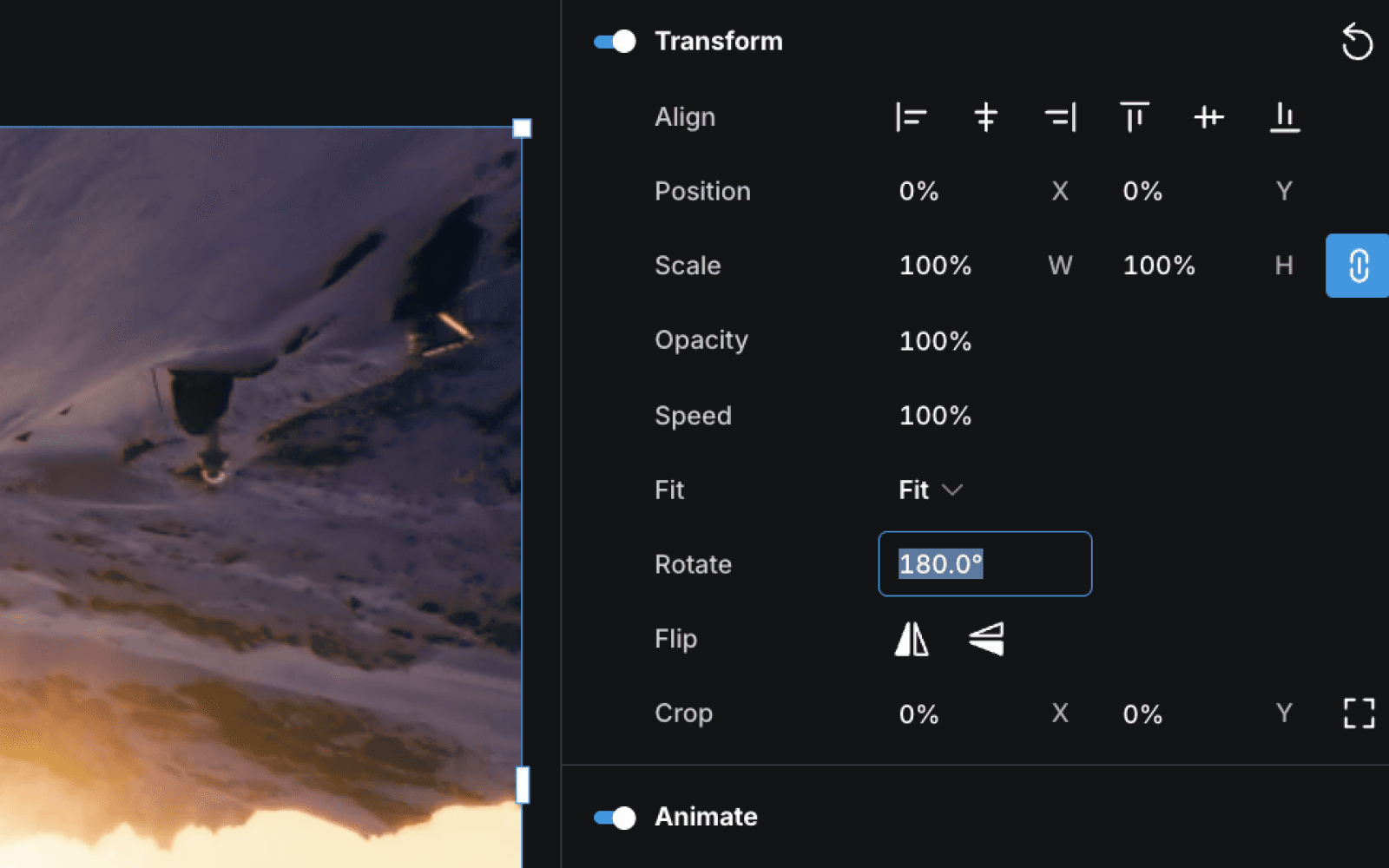
Rotating a video in elevate.io takes a few clicks. The Rotate control is in the Transform panel on the Video tab, and you can enter any degree value to change the angle of the clip.
Open elevate.io in your browser and sign in, or create a free account
Click the blue
+ Create projectbutton in the top right of your workspaceUpload your video clip to the media panel
Drag the clip onto the timeline
Click the clip to select it and you’ll see the video tab open on the right side of the editor. then
Find the Transform panel, find Rotate. Then, type in the angle you want the orientation to be.
You can also rotate the clip directly in the preview window using on-screen controls. Move your cursor just outside one of the whit corner squares until you see the rotate icon appear. Then, click and drag to spin it to the angle you want.
If you want to make sure the newly oriented clip takes up the entire frame, go to Fit in the Tranforms panel, and toggle from Fit to Fill.
See the result in the preview window, then export your finished video from the top right of the editor
Your video is easily fixed - start now in your browser
How to flip a video
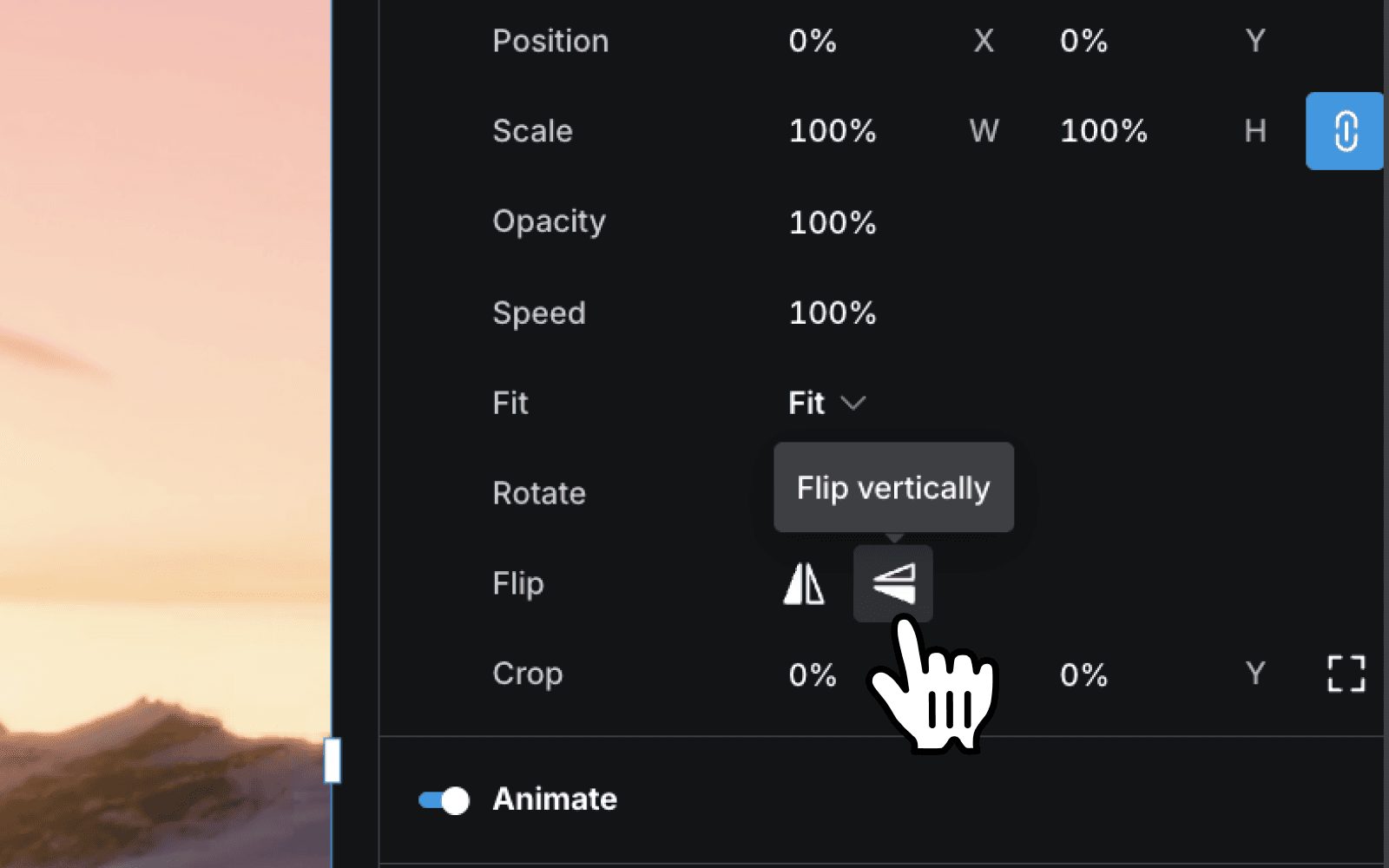
The Flip control sits in the same Transform panel as Rotate. You can flip horizontally, vertically, or both.
Follow steps 1–5 above to open your project and select the clip on the timeline
In the Video tab, open the Transform panel
Find Flip and you’ll see the horizontal and vertical flip options.
Select Flip horizontally to mirror the video left to right — this is the most common fix for selfie-style footage or reversed screen recordings
Select Flip vertically to mirror the video top to bottom — useful for correcting upside-down drone footage or creative effects
Preview and export when done
When would you flip or rotate a video?
Most people land on this page because something went wrong with their footage. Here are the most common scenarios:
Straightening a clip to make the clip angle level:
You shot on a phone, and the clip was exported sideways or upside down
Your camera had auto-rotate switched off, and the orientation wasn't saved correctly
A clip exported from another tool came out in the wrong orientation
Flip your video horizontally when:
You recorded selfie-style footage and text or logos appear mirrored
A screen recording came out reversed
You need a clip to face the opposite direction to match another shot in a sequence
Flip your video vertically when:
Drone footage came out upside down
You want a deliberate reflection effect for a creative project
Once you've corrected the orientation, you can also make colour and brightness adjustments or explore the full range of tools on the features page.
Frequently asked questions
What is the best software to flip videos on a Windows PC?
If you want to flip a video on a Windows PC without downloading software, elevate.io is a strong option, it runs entirely in any browser, including Edge and Chrome, and the flip control is free to use with no installation required. If you prefer a desktop application, Windows Photos has a basic flip function built in.
How do I flip a video horizontally using free online tools?
In elevate.io, select your clip on the timeline, open the Transform panel in the Video tab, and click Flip horizontally. It takes a few seconds and is free to use. The result exports without a watermark on the free plan.
How can I rotate a video file on my computer?
The quickest way to rotate a video without downloading software is to use a browser-based editor like elevate.io. Upload your clip, select it on the timeline, and use the Rotate control in the Transform panel and type in the angle you want.
Where can I find online tools to rotate video clips easily?
elevate.io is a free browser-based video editor that includes a Rotate control in its Transform panel. It works on any device (including Chromebooks and work laptops where installing software isn't possible) and requires no account upgrade to use the basic rotation and flip tools.
Fix your video in under a minute
Flipping and rotating are quick and easy. Open it in your browser, upload your clip, select it on the timeline, and use the Transform panel to correct the orientation.
No download, no watermark, and it works on any device.
If you've exported a video and found it's sideways, upside down, or mirrored, you don't need to reshoot it or download software to fix it. You can flip or rotate a video directly in your browser in under a minute. This guide shows you how to do both using elevate.io.
Fix your video now - open elevate.io in your browser
What is the difference between flipping and rotating a video?
These terms are often used interchangeably, but they do different things. Rotating changes the angle of the video (type any value in degrees you want, no limitations here!) and is what you need when a clip was shot sideways, upside down, straightening it, realigning it or fixing a slightly tilted clip. Flipping mirrors the video either horizontally (left-right) or vertically (top-bottom), and is what you need when text appears backwards, or an image looks reversed.
How to rotate a video in elevate.io
Rotating a video in elevate.io takes a few clicks. The Rotate control is in the Transform panel on the Video tab, and you can enter any degree value to change the angle of the clip.
Open elevate.io in your browser and sign in, or create a free account
Click the blue
+ Create projectbutton in the top right of your workspaceUpload your video clip to the media panel
Drag the clip onto the timeline
Click the clip to select it and you’ll see the video tab open on the right side of the editor. then
Find the Transform panel, find Rotate. Then, type in the angle you want the orientation to be.
You can also rotate the clip directly in the preview window using on-screen controls. Move your cursor just outside one of the whit corner squares until you see the rotate icon appear. Then, click and drag to spin it to the angle you want.
If you want to make sure the newly oriented clip takes up the entire frame, go to Fit in the Tranforms panel, and toggle from Fit to Fill.
See the result in the preview window, then export your finished video from the top right of the editor
Your video is easily fixed - start now in your browser
How to flip a video
The Flip control sits in the same Transform panel as Rotate. You can flip horizontally, vertically, or both.
Follow steps 1–5 above to open your project and select the clip on the timeline
In the Video tab, open the Transform panel
Find Flip and you’ll see the horizontal and vertical flip options.
Select Flip horizontally to mirror the video left to right — this is the most common fix for selfie-style footage or reversed screen recordings
Select Flip vertically to mirror the video top to bottom — useful for correcting upside-down drone footage or creative effects
Preview and export when done
When would you flip or rotate a video?
Most people land on this page because something went wrong with their footage. Here are the most common scenarios:
Straightening a clip to make the clip angle level:
You shot on a phone, and the clip was exported sideways or upside down
Your camera had auto-rotate switched off, and the orientation wasn't saved correctly
A clip exported from another tool came out in the wrong orientation
Flip your video horizontally when:
You recorded selfie-style footage and text or logos appear mirrored
A screen recording came out reversed
You need a clip to face the opposite direction to match another shot in a sequence
Flip your video vertically when:
Drone footage came out upside down
You want a deliberate reflection effect for a creative project
Once you've corrected the orientation, you can also make colour and brightness adjustments or explore the full range of tools on the features page.
Frequently asked questions
What is the best software to flip videos on a Windows PC?
If you want to flip a video on a Windows PC without downloading software, elevate.io is a strong option, it runs entirely in any browser, including Edge and Chrome, and the flip control is free to use with no installation required. If you prefer a desktop application, Windows Photos has a basic flip function built in.
How do I flip a video horizontally using free online tools?
In elevate.io, select your clip on the timeline, open the Transform panel in the Video tab, and click Flip horizontally. It takes a few seconds and is free to use. The result exports without a watermark on the free plan.
How can I rotate a video file on my computer?
The quickest way to rotate a video without downloading software is to use a browser-based editor like elevate.io. Upload your clip, select it on the timeline, and use the Rotate control in the Transform panel and type in the angle you want.
Where can I find online tools to rotate video clips easily?
elevate.io is a free browser-based video editor that includes a Rotate control in its Transform panel. It works on any device (including Chromebooks and work laptops where installing software isn't possible) and requires no account upgrade to use the basic rotation and flip tools.
Fix your video in under a minute
Flipping and rotating are quick and easy. Open it in your browser, upload your clip, select it on the timeline, and use the Transform panel to correct the orientation.
No download, no watermark, and it works on any device.